Set it up once. Lock it anytime.
No app can lock your phone on its own. Apple only allows it through Guided Access, built into every iPhone and iPad.
- 1
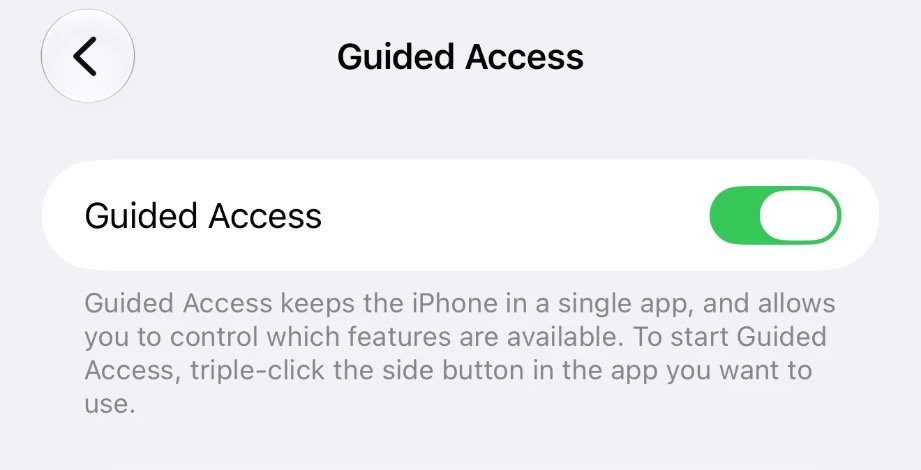
Turn on Guided Access
Settings → Accessibility → Guided Access → turn it on.
Apple's built-in lock. It keeps the phone on one app and hides notifications.
- 2
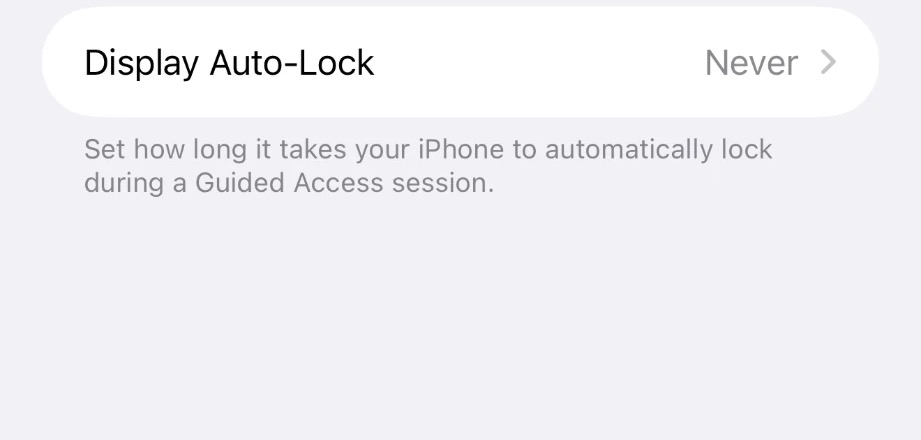
Set your passcode and keep the screen awake
Still in Guided Access: Passcode Settings → Set Guided Access Passcode, and turn on Face ID. Then Display Auto-Lock → Never.
- 3
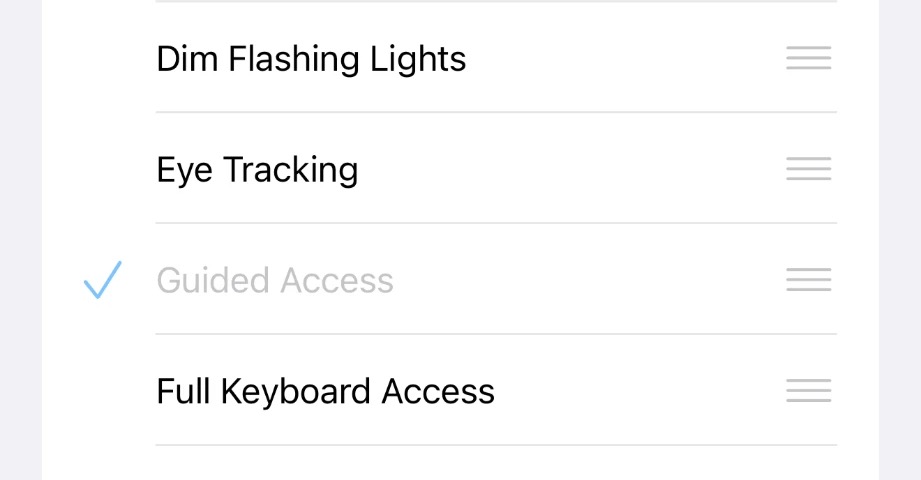
Make triple-click go straight to the lock
Settings → Accessibility → Accessibility Shortcut → only Guided Access checked.
- 4
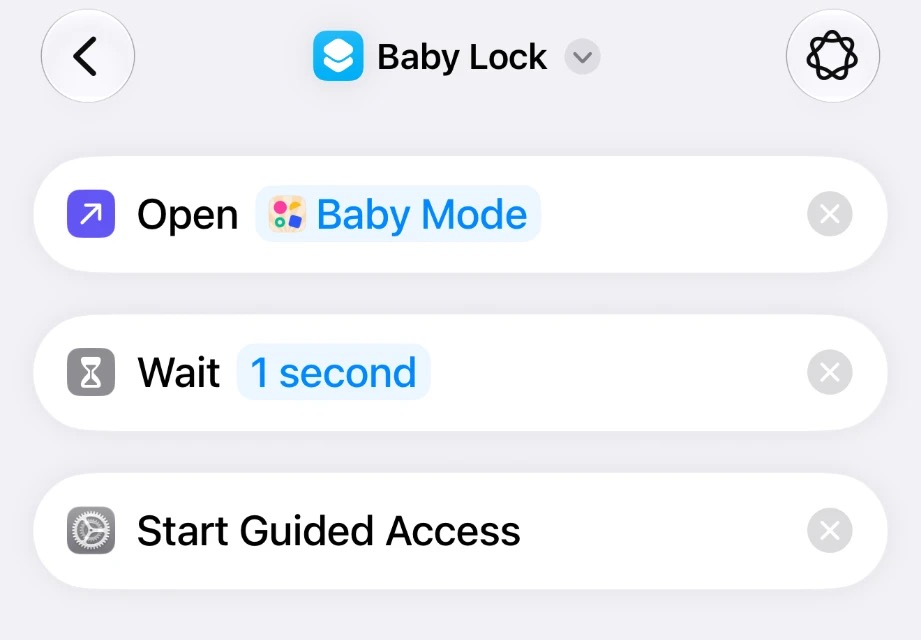
Add the Baby Lock shortcut
Tap the button, then Add Shortcut.
Or build it yourself in the Shortcuts app: Open App → Baby Mode, Wait → 1 second, Start Guided Access. Name it exactly Baby Lock.
- 5
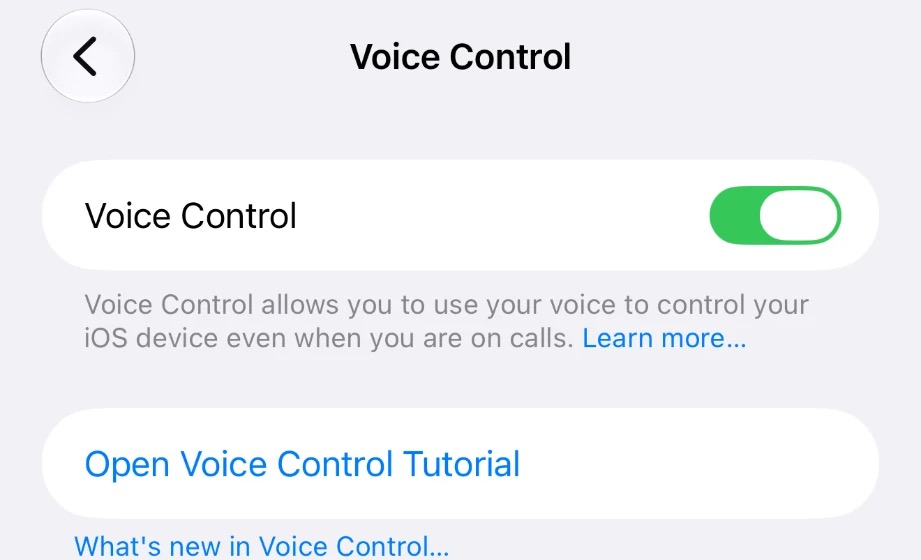
Turn on Voice Control
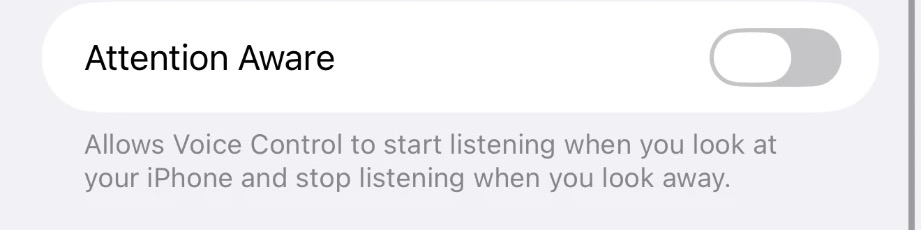
Settings → Accessibility → Voice Control → on. Further down, keep Attention Aware off.
Then say "Command mode" once, so it only listens for commands and doesn't type what it hears.
- 6
Add "Lock into Baby Mode"
Voice Control → Commands → Create New Command. Phrase: Lock into Baby Mode. Action: Run Shortcut → Baby Lock. Application: Any.
Before Save, check Action says Baby Lock, not "(null)".
- 7
Check the lock's options once
In Baby Mode, triple-click the side button → Options: Touch on, Side Button off, Time Limit off. Tap Done, then Start.
- 8
Babyproof your lock screen too
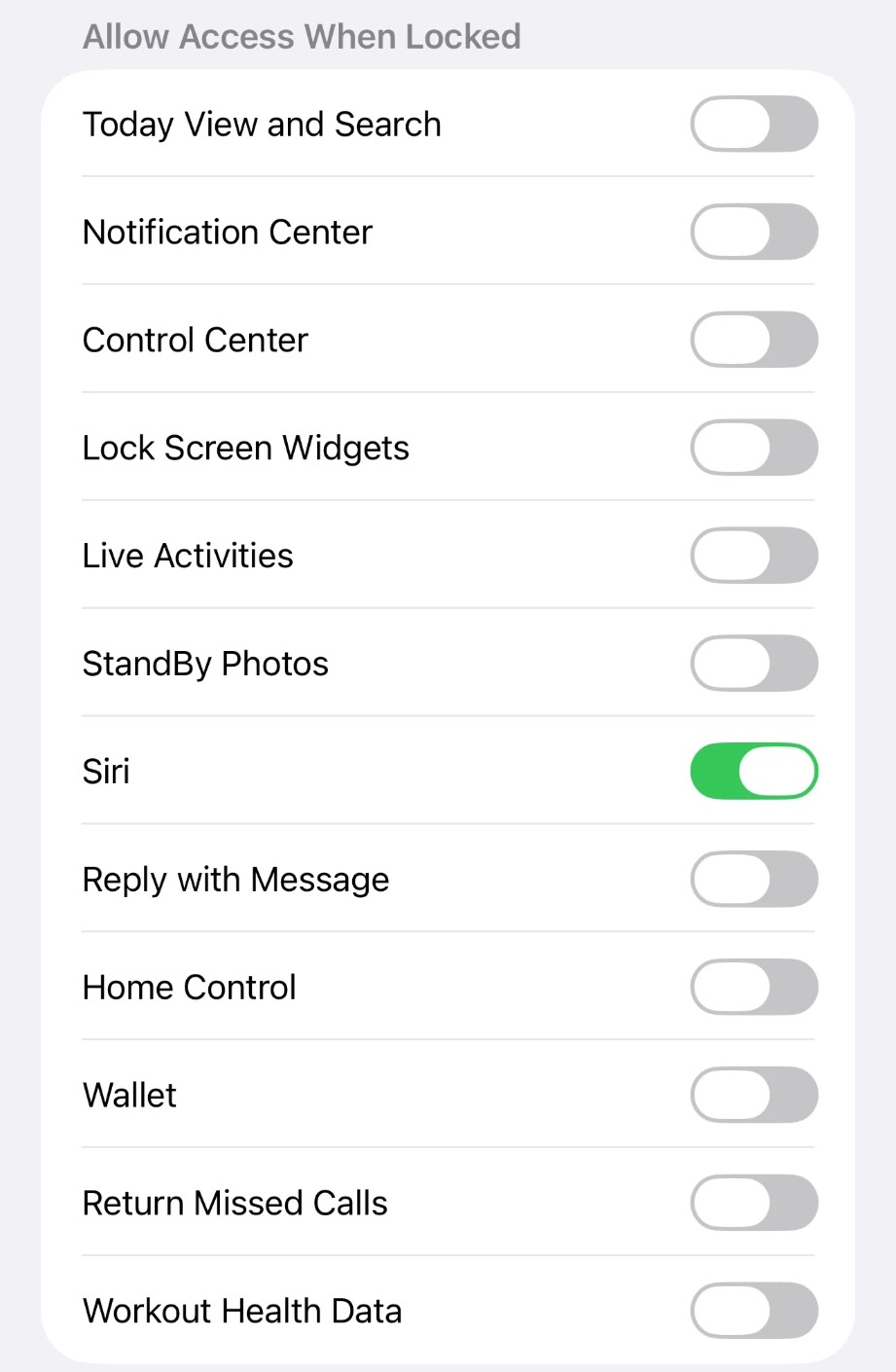
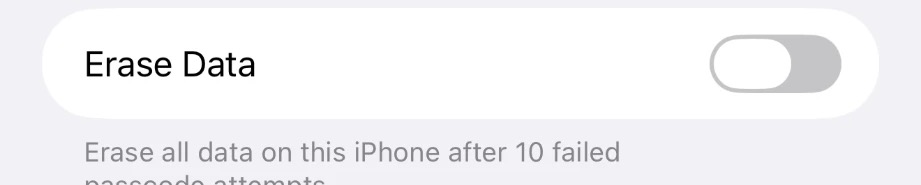
Settings → Face ID & Passcode → Allow Access When Locked: turn off everything except Siri. Make sure Erase Data is off.
Now try it
Say "Lock into Baby Mode." The o in "mode" clicks shut into a padlock and a green Locked pill appears. Or tap the padlock on the home screen. To unlock, triple-click the side button and use your passcode or Face ID.